
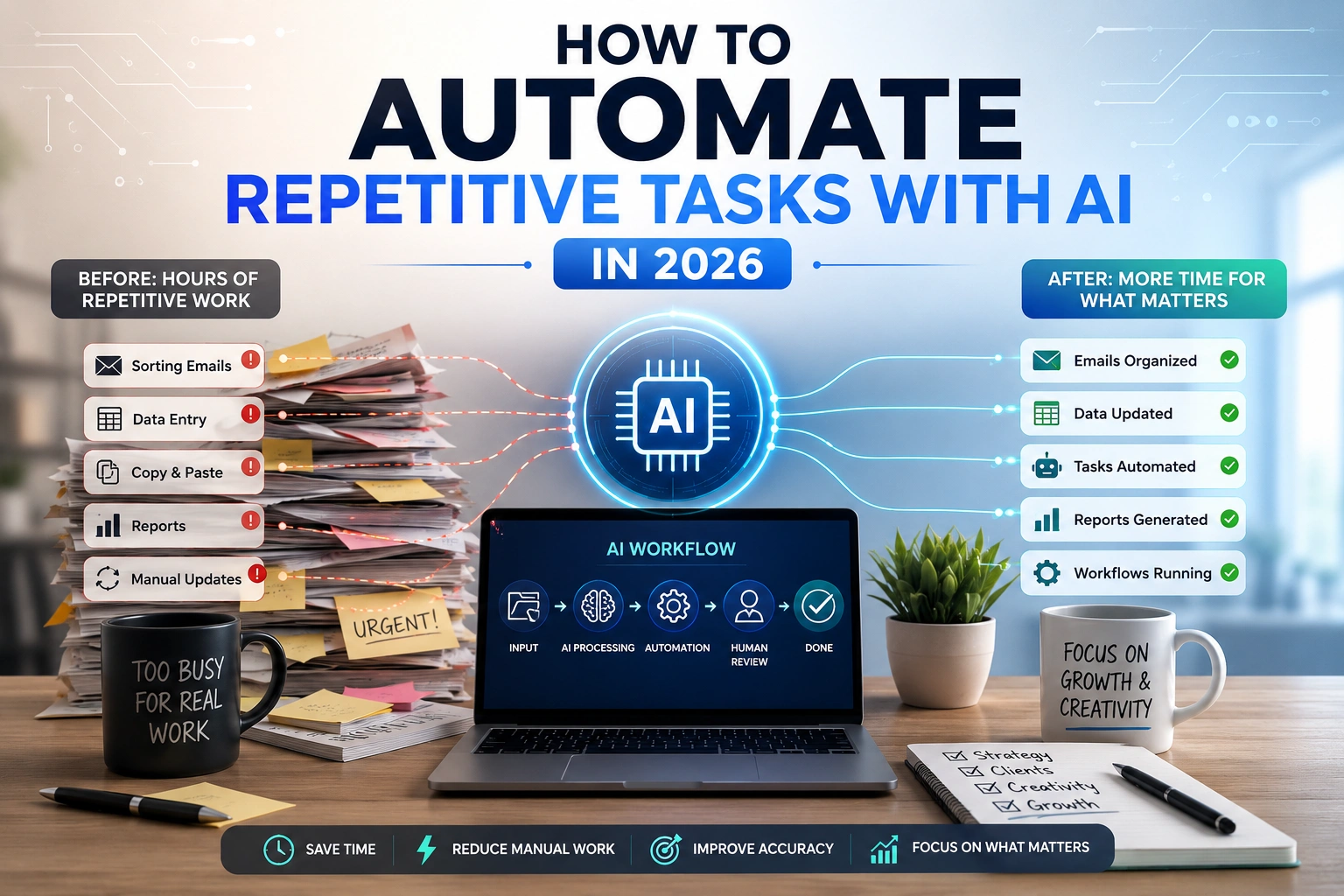
If your workweek feels like a loop of the same five tasks over and over, you’re not imagining it. Sorting emails, copying data between spreadsheets, writing the same kind of status update, answering the same customer questions — this is the kind of work that quietly eats hours without ever showing up as “real progress” at the end of the day.
That’s exactly the gap AI is now well-suited to close. Learning how to automate repetitive tasks with AI isn’t about replacing yourself or your team. It’s about identifying the parts of your job that don’t require judgment, creativity, or relationship-building, and letting AI handle the mechanical middle steps so you can focus on the parts that actually need a human.
This guide skips the “best AI tools” format you’ve probably already seen. Instead, it walks through how AI task automation actually works, which repetitive tasks are worth automating first, how to build your first workflow, and — just as important — where automation should stop and human review should take over.
Want to get started right away? Follow these six steps:
- Pick one repetitive task — Choose something predictable and low-risk.
- Define the desired result — Decide what a successful output looks like.
- Choose an AI or automation approach — Start with a tool or capability you already understand.
- Test it with low-risk data — Don’t start with important customer or business data.
- Add human review — Check the AI’s output before it moves to the next step.
- Measure the results — Track time saved, errors, and remaining manual work.
What Are Repetitive Tasks?
Repetitive tasks are the parts of your job that follow a predictable pattern every time you do them. They don’t usually require deep thinking. They require consistency, attention, and time — which makes them a poor use of a skilled person’s energy and a good fit for AI assistance.
A simple test: if you could write a checklist for the task once and hand it to a new employee on day one, it’s probably repetitive.
Common examples show up in nearly every job:
- Copying and organizing information between documents, spreadsheets, or systems
- Email sorting and drafting, especially responses to common questions
- Meeting notes, including summaries and follow-up action items
- Data entry, like transferring form responses into a CRM or spreadsheet
- Content repurposing, turning one piece of content into several formats
- Customer inquiries that repeat the same handful of questions
- Scheduling and calendar coordination
- Routine reporting, such as weekly or monthly status updates
- Lead qualification, sorting inbound leads by fit and priority
- Document summarization, condensing long reports or contracts into key points
Many of these tasks involve limited creativity and follow predictable patterns, which makes them good candidates for AI assistance.
How AI Task Automation Works
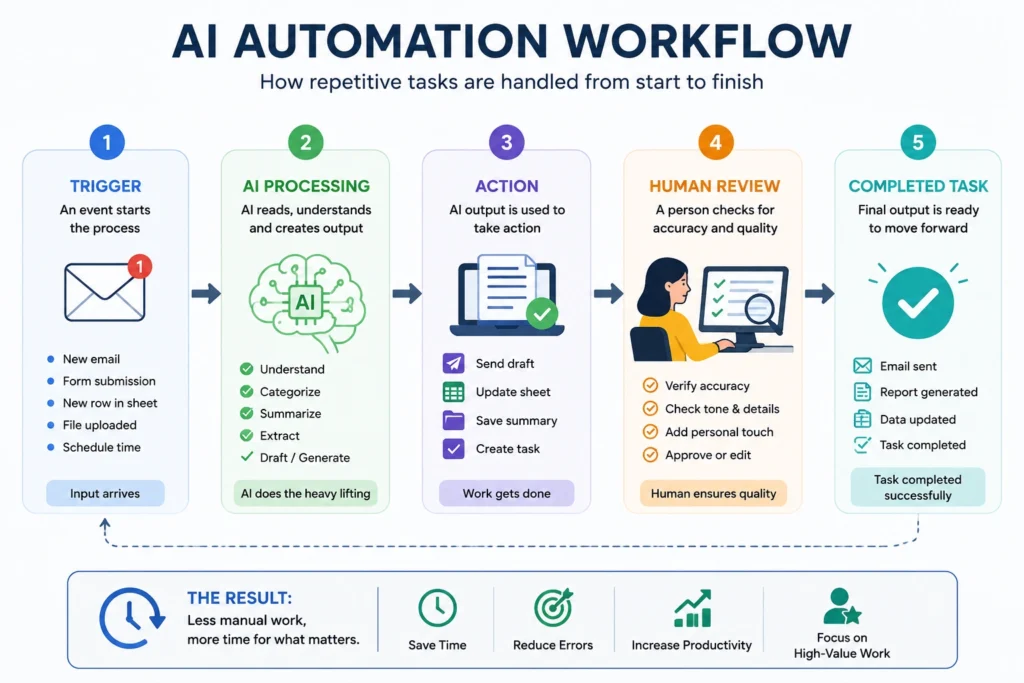
Before jumping into use cases, it helps to understand the basic shape of an AI automation, because nearly every example in this article follows the same pattern:
Trigger → AI processes information → Action → Human review
Here’s what each stage actually means:
Trigger is the event that starts the process. It could be a new email landing in your inbox, a form submission, a new row in a spreadsheet, or simply you pasting a document into an AI assistant and asking for help.
AI processes information is where the AI reads, interprets, categorizes, summarizes, or drafts something based on that input. This is the “thinking” step, though it’s more accurate to call it pattern-matching and language generation rather than genuine understanding.
Action is what happens with the AI’s output — a draft email gets created, a spreadsheet row gets filled in, a summary gets saved, a task gets flagged for follow-up.
Human review is the checkpoint where a person confirms the output is accurate, appropriate, and ready to move forward — or corrects it before it goes any further.
That last step is not optional in almost any serious use case, and this guide will come back to it repeatedly. AI is very good at producing something quickly. It is not consistently good at knowing when it’s wrong, which is why the review step matters more than the automation itself.
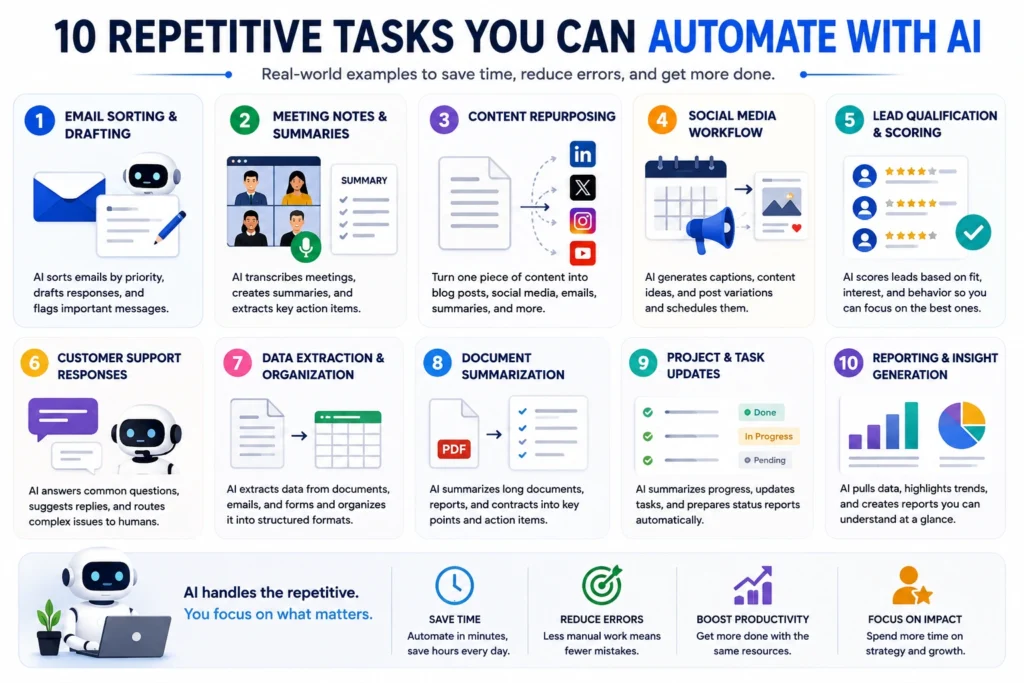
10 Repetitive Tasks You Can Automate With AI
These are ten of the most practical, genuinely time-saving places to start. Each one includes what the task is, how AI helps, a realistic example, and what still needs a human eye.
1. Email Sorting and Drafting
The task: Reading through a crowded inbox, categorizing messages, and writing replies to routine questions.
How AI helps: Modern AI assistants can scan incoming messages, sort them by topic or urgency, and draft responses based on your typical tone and past replies.
Example: A freelance designer gets the same three questions from prospective clients — pricing, turnaround time, and availability. An AI assistant drafts a reply pulling from a saved template, and the freelancer just personalizes and sends it.
What to review: Tone, accuracy of specific details (dates, prices, names), and anything involving a client complaint or sensitive situation.
2. Meeting Transcription and Summaries
The task: Taking notes during calls or meetings and turning them into a usable summary afterward.
How AI helps: AI transcription tools can capture spoken conversation, summarize the key discussion points, and pull out action items automatically.
Example: A small marketing team uses AI meeting notes so no one has to manually type minutes. After the call, everyone gets a summary with clear owners assigned to each follow-up task.
What to review: Whether action items were correctly attributed to the right person, and whether any nuance or disagreement in the conversation got flattened into an overly simple summary.
3. Content Repurposing
The task: Turning one piece of long-form content — a blog post, video, or podcast episode — into multiple smaller formats.
How AI helps: AI can pull key quotes, condense long content into short-form posts, and adapt tone for different platforms (LinkedIn versus Instagram, for example).
Example: A content creator publishes a YouTube video, then uses AI to draft a blog recap, three social captions, and a short email newsletter blurb based on the transcript.
What to review: Whether the repurposed content still sounds like your voice, and whether any claims or quotes were altered in a way that changes their meaning.
4. Social Media Workflow Tasks
The task: Generating post ideas, drafting captions, and organizing a content calendar.
How AI helps: AI can brainstorm topic angles, write multiple caption variations, and help structure a posting schedule based on your content themes.
Example: A small business owner asks an AI assistant for five caption options around a seasonal promotion, then picks and edits the one that fits best.
What to review: Brand voice consistency, factual accuracy of any claims or offers, and whether the tone fits current events (AI has no awareness of what’s happening the day you post).
For a broader look at platform-specific tools, EveryTechHub’s guide to the best AI tools for social media marketing covers options in more depth.
5. Lead Qualification
The task: Reviewing incoming leads and sorting them by fit, urgency, or likelihood to convert.
How AI helps: AI can read lead form submissions or inquiry emails, extract relevant details (budget, timeline, company size), and assign a priority tag or route the lead to the right person.
Example: A small agency uses AI to tag inbound leads as “high priority,” “needs nurturing,” or “not a fit” based on the details submitted, so the sales team spends time on the leads most likely to close.
What to review: Borderline cases where the AI’s categorization doesn’t match your gut read, and any lead involving a larger deal size where a human judgment call matters more.
6. Customer Support Responses
The task: Answering common customer questions consistently and quickly.
How AI helps: AI can classify incoming support tickets by topic, suggest or draft a response based on your help documentation, and flag anything unusual for a human agent.
Example: An online store uses AI to draft responses to shipping and return questions, which a support agent reviews and sends within seconds instead of writing from scratch.
What to review: Any response involving a refund, complaint, or policy exception — these need human judgment, not just accuracy. EveryTechHub’s roundup of best AI tools for customer service goes deeper into dedicated platforms for this use case.
7. Data Extraction and Organization
The task: Pulling specific information out of documents, emails, or forms and organizing it into a usable format.
How AI helps: AI can read unstructured text — like a scanned invoice or a long email thread — and extract key fields (dates, amounts, names) into a spreadsheet or database.
Example: A bookkeeper uses AI to pull vendor names, invoice totals, and due dates from a folder of PDF invoices into a spreadsheet, instead of typing each one manually.
What to review: Numbers and dates especially — AI extraction tools can misread poorly scanned documents or ambiguous formatting, so spot-checking is essential, particularly for financial data.
8. Document Summarization
The task: Condensing long reports, contracts, or research documents into key takeaways.
How AI helps: AI can read a lengthy document and produce a summary highlighting the main points, obligations, or findings.
Example: A small-business owner uses AI to summarize a 20-page vendor contract before a call with their lawyer, so they walk in already understanding the general terms.
What to review: Anything with legal, financial, or contractual weight should still be read in full by a qualified professional — an AI summary is a starting point for understanding, not a substitute for due diligence.
9. Project and Task Updates
The task: Compiling progress across a project and communicating status to stakeholders.
How AI helps: AI can pull together notes, completed tasks, and outstanding items into a clear status update, saving the time of writing one from scratch each week.
Example: A project manager pastes raw notes from the week into an AI assistant and gets back a structured update ready to share with clients or leadership.
What to review: Whether the summary accurately reflects priorities and risks — AI tends to summarize what was written, not what was left unsaid, so gaps in the source notes carry through.
10. Routine Reporting
The task: Preparing recurring reports — weekly sales numbers, monthly performance summaries, and similar recurring documents.
How AI helps: AI can take raw data and turn it into a readable narrative report, highlighting notable trends or changes compared to previous periods.
Example: A small business uses AI to turn a monthly sales spreadsheet into a plain-language summary for a team meeting, cutting the time spent building the same slide deck every month.
What to review: The underlying data source and any trend claims — AI can misinterpret what’s driving a number up or down if it isn’t given full context.
How to Create Your First AI Automation Workflow
Getting started doesn’t require technical skills or an enterprise budget. It requires picking one task and working through it methodically.
- Identify a repetitive task. Choose something you do often, that follows a predictable pattern, and that doesn’t involve high-stakes decisions.
- Define the desired outcome. Be specific about what “done well” looks like — a properly formatted email, an accurate summary, a correctly tagged lead.
- Choose an appropriate AI or automation capability. This might be a general-purpose AI assistant, a workflow automation platform, or a feature built into a tool you already use.
- Build a simple workflow. Map out the trigger, the AI’s role, and the resulting action in plain language before building anything.
- Test it with low-risk examples. Run the workflow on old or non-critical data first, not live customer-facing material.
- Add human review. Decide exactly who checks the output, and at what point in the process that review happens.
- Monitor and improve the workflow. Revisit it after a few weeks — is it saving time, or creating new problems?
Here’s what that looks like end to end for a customer inquiry:
Customer inquiry arrives → AI categorizes the request → information is recorded in a spreadsheet or CRM → a response is drafted → a human reviews and edits the draft → the response is sent.
The most common mistake beginners make is trying to automate an entire process — or an entire business function — right away. Start with one small task, get it working reliably, and only then look at what to automate next.
How to Choose the Right AI Automation Approach
Not every repetitive task is a good automation candidate, and not every automation approach fits every task. A few factors are worth weighing before you build anything:
- Frequency — how often does this task happen? Daily tasks are usually worth automating; once-a-year tasks often aren’t.
- Time consumed — how many hours does it eat up over a month?
- Repetitiveness — does the task follow the same steps every time, or does it change based on context?
- Complexity — does it require multiple decisions, or a single, clear output?
- Error risk — what happens if the AI gets it wrong?
- Data sensitivity — does the task involve confidential, financial, or personal information?
- Available integrations — can your existing tools actually connect to an AI system, or would this require custom development?
- Cost — does the value of the time saved outweigh what you’d spend on tools or setup?
- Need for human judgment — does the task involve empathy, negotiation, or nuanced decision-making?
A task is generally a poor candidate for automation when it involves high error risk combined with low tolerance for mistakes — for example, anything touching legal compliance, sensitive customer disputes, or irreversible financial transactions. In those cases, AI can still assist (drafting, summarizing, organizing), but it shouldn’t be the final decision-maker.
Free vs. Paid AI Automation
Both free and paid approaches have a place, depending on where you are in your automation journey.
Free tools tend to work well for:
- Testing whether an automation idea is even worth pursuing
- Low-volume tasks, like a handful of emails or documents per week
- Beginners who are still learning how AI assistants respond to different prompts
- Simple, single-step workflows that don’t need to connect multiple tools
Paid solutions tend to make more sense for:
- Higher-volume tasks that would take too long to review manually one by one
- Multi-user teams that need shared access and consistent results
- Advanced integrations connecting several tools or platforms together
- Business-critical workflows where reliability and support matter
- Larger automation needs, like processing hundreds of documents or leads per month
There’s no universal answer to “is it worth paying.” The honest approach is to test with a free tool or trial first, measure whether it actually saves meaningful time, and only upgrade once you’ve confirmed the workflow is worth scaling. Be skeptical of any tool or article promising a specific dollar figure in savings — actual results vary widely based on your task volume, current process, and how much editing the output needs.
What You Should NOT Automate With AI
This is arguably the most important section in this guide, because the temptation to over-automate is real — and the cost of getting it wrong isn’t always obvious until after the fact.
Some areas should keep a human clearly in charge, with AI playing a supporting role at most:
- Sensitive customer decisions, like disputes, complaints, or account terminations
- Legal decisions, including contract terms, compliance matters, and anything with regulatory consequences
- Financial decisions, such as approving large transactions or making investment calls
- Confidential information, especially anything involving personal, medical, or proprietary data
- Important client communication, particularly first impressions, negotiations, or relationship-repair conversations
- High-stakes business decisions, like hiring, layoffs, or strategic direction
- Final approval of important content, including anything published under your brand’s name or legally binding
In each of these cases, AI can still help — drafting a first version, summarizing background information, or organizing details — but the final judgment call should stay with a person who understands the full context and can be accountable for the outcome.
For a practical framework for managing AI-related risks and keeping human oversight in AI systems, see the NIST AI Risk Management Framework.
Common AI Automation Mistakes to Avoid
Even well-intentioned automation efforts go wrong in predictable ways. Watch for these:
- Automating everything at once. This makes it nearly impossible to tell what’s working and what’s broken.
- Choosing tools based only on popularity. The most talked-about tool isn’t always the right fit for your specific workflow.
- Not testing workflows before going live. Always run a trial batch before pointing an automation at real customers or real data.
- Not reviewing AI output. Skipping human review is how small errors turn into public mistakes.
- Ignoring privacy and data security. Understand where your data goes and how it’s stored before feeding in sensitive information. Before using AI automation with customer or business data, review the FTC’s guidance on protecting personal information to understand basic data-security considerations.
- Creating overly complicated workflows. More steps mean more points of failure — simpler is usually more reliable.
- Paying for unnecessary features. Don’t upgrade to an expensive plan before confirming you actually need the extra capability.
- Failing to monitor automated processes. An automation that worked fine last month can quietly break when an input format changes.
AI Automation for Different Users
Automation looks a little different depending on the kind of work you do, but the underlying approach — start small, review often, expand carefully — stays the same.
Freelancers often benefit most from automating client communication drafts, invoicing reminders, and proposal templates, freeing up time for billable work. EveryTechHub’s guide to best AI tools for freelancers covers tool-specific options if you want to go deeper.
Small-business owners tend to see the biggest wins in customer inquiry sorting, routine reporting, and lead qualification — tasks that pile up fastest as a business grows. The best AI tools for small businesses in the USA guide is a useful companion piece here.
Content creators can lean on automation for repurposing long-form content into multiple formats, freeing time for the actual creative work. For platform-specific help, see best AI tools for blog writing.
Marketers often automate campaign reporting, caption drafting, and content calendar organization, while keeping strategy and messaging decisions human-led.
Remote workers benefit from automated meeting summaries and status updates, which reduce the communication overhead that distributed teams deal with constantly.
Administrative professionals can automate scheduling coordination, document organization, and routine correspondence — some of the most repetitive work in any office setting.
How to Measure Whether an AI Automation Is Actually Useful
It’s easy to assume an automation is working just because it’s running. The only way to know for sure is to measure it.
A few practical metrics worth tracking:
| Metric | What It Tells You |
|---|---|
| Time saved per task | Whether the automation is actually faster than doing it manually |
| Number of tasks automated | How much of the repetitive workload has been addressed |
| Error rate | How often the AI output needs significant correction |
| Manual interventions required | How much ongoing human effort the “automated” process still needs |
| Cost of the automation | Whether the tool or platform expense is justified by the time saved |
| Turnaround time | Whether output reaches the next step faster than before |
| Overall quality | Whether the end result meets the same standard as manual work |
An automation is only successful if it improves the workflow without creating new problems elsewhere. If a task now takes less time to produce but more time to fix, that’s not a net win — it’s a shifted cost. Revisit each automation periodically, especially after a few weeks of real use, and be willing to adjust or abandon anything that isn’t holding up.
Frequently Asked Questions
Can beginners automate repetitive tasks with AI? Yes. Most beginner-friendly AI assistants require no coding and can help with tasks like drafting emails, summarizing documents, or organizing information right away. Start with a single task before building anything more complex.
What tasks are easiest to automate with AI? Tasks with clear, repeatable patterns and low error risk — like summarizing documents, drafting routine emails, or organizing data — are the easiest starting points.
Do I need coding skills for AI automation? Not for most personal or small-business use cases. Many AI assistants and no-code automation platforms are designed for non-technical users. Coding becomes more relevant for complex, multi-system integrations.
Is AI automation expensive? It depends on the scale. Many tasks can start with free or low-cost tools, especially for testing and low-volume use. Costs generally rise with higher volume, more advanced integrations, and business-critical reliability needs.
Is AI automation safe for business data? It can be, but only if you understand how a given tool handles data storage, privacy, and security before feeding in sensitive information. Review a tool’s data policy and avoid inputting confidential material into tools that don’t offer clear privacy protections.
Can AI completely automate a workflow? Rarely, and it usually shouldn’t. Most reliable workflows keep a human review step for accuracy, judgment, and accountability, even when most of the process is automated.
How many tasks should I automate first? Start with one. Get it working reliably, measure whether it’s actually helping, and only then move on to automating a second task.
Final Thoughts
Learning how to automate repetitive tasks with AI isn’t about chasing every new tool or trying to remove yourself from the process entirely. It’s about recognizing which parts of your work are mechanical and predictable, and giving those parts to a system that can handle them consistently — while keeping human judgment in charge of anything that matters.
The most reliable path forward is also the simplest one: pick one repetitive, low-risk task, automate a small part of it, test the results carefully, keep a human review step in place, and only expand once that first workflow is working the way you need it to. Repetitive work isn’t going away entirely, but with the right approach to AI workflow automation, it doesn’t have to take up nearly as much of your day.
About the Author
Hi, We are the founders of EveryTechHub. We share beginner-friendly guides on AI tools, blogging, and technology based on hands-on testing and real experience. Read more about us.