
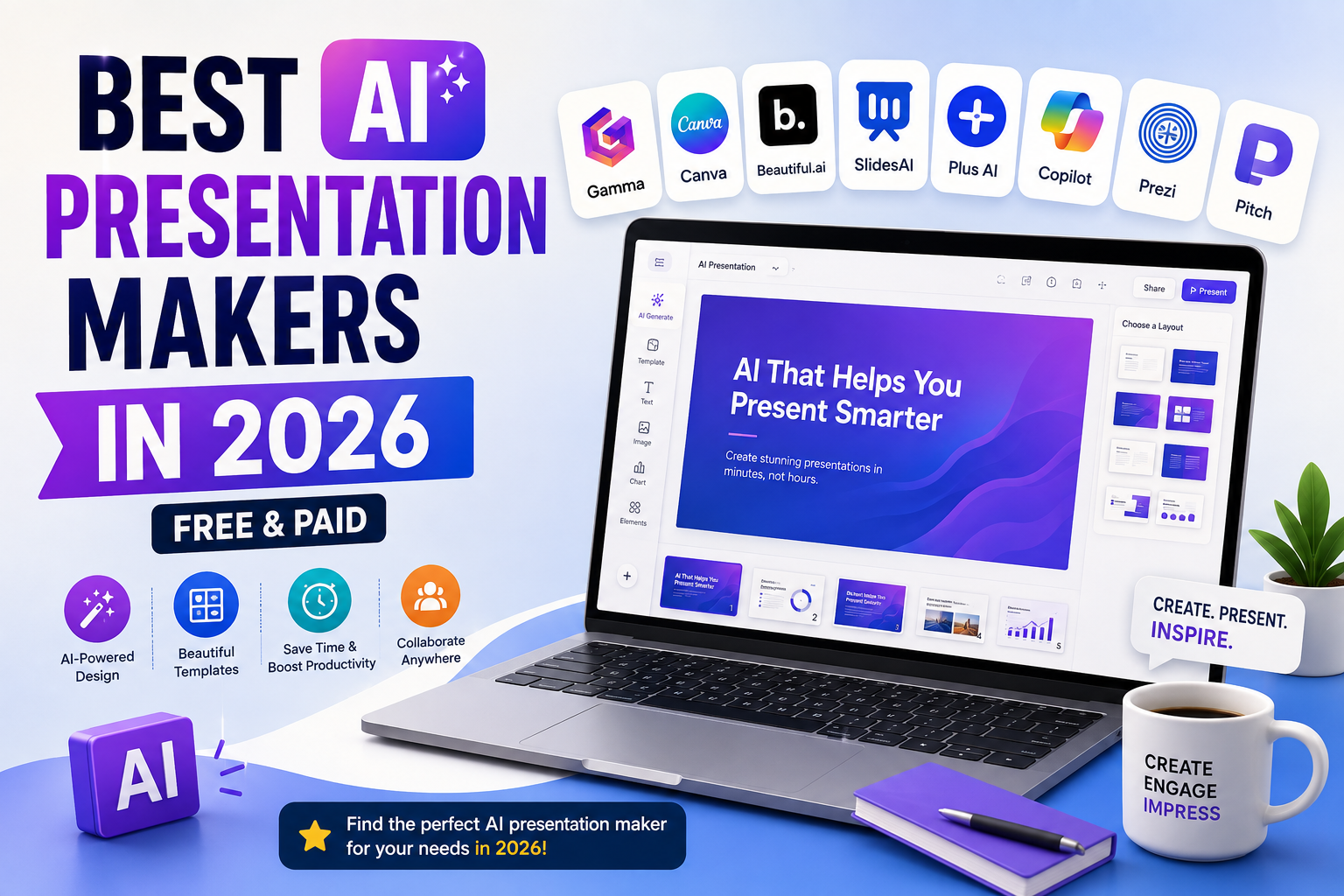
The best AI presentation makers in 2026 can turn a rough idea, an outline, or even an old document into a finished slide deck in minutes instead of hours. That matters because more people than ever — students, teachers, founders, marketers, and small business owners — need polished slides on a tight schedule, without a design background. These tools handle layout, wording, images, and charts, so you can focus on the message instead of pixel-pushing. In this guide, you’ll learn how AI presentation tools work, see honest reviews of the leading platforms, and get clear recommendations for which one fits your situation, whether that’s a classroom project or a client pitch.
What Is an AI Presentation Maker?
An AI presentation maker is software that generates slides automatically from a prompt, topic, outline, or existing document, instead of asking you to build every slide by hand. You type in what you want — say, “a 10-slide pitch deck for a plant-based snack brand” — and the AI presentation generator drafts a structure, writes supporting text, chooses a layout for each slide, and often adds relevant images or icons.
Some tools go further and pull content straight from a PDF, Word document, or webpage and reshape it into slides. Many also generate basic charts from pasted data and keep fonts and spacing consistent across the deck.
The main difference from traditional presentation software like classic PowerPoint or Google Slides is where the work starts. Traditional tools give you a blank canvas and templates; an AI presentation maker gives you a mostly finished draft that you then edit and personalize. This doesn’t replace good judgment — you still need to review the content — but it removes the blank-page problem and the hours normally spent on layout and formatting.
How AI Presentation Makers Work
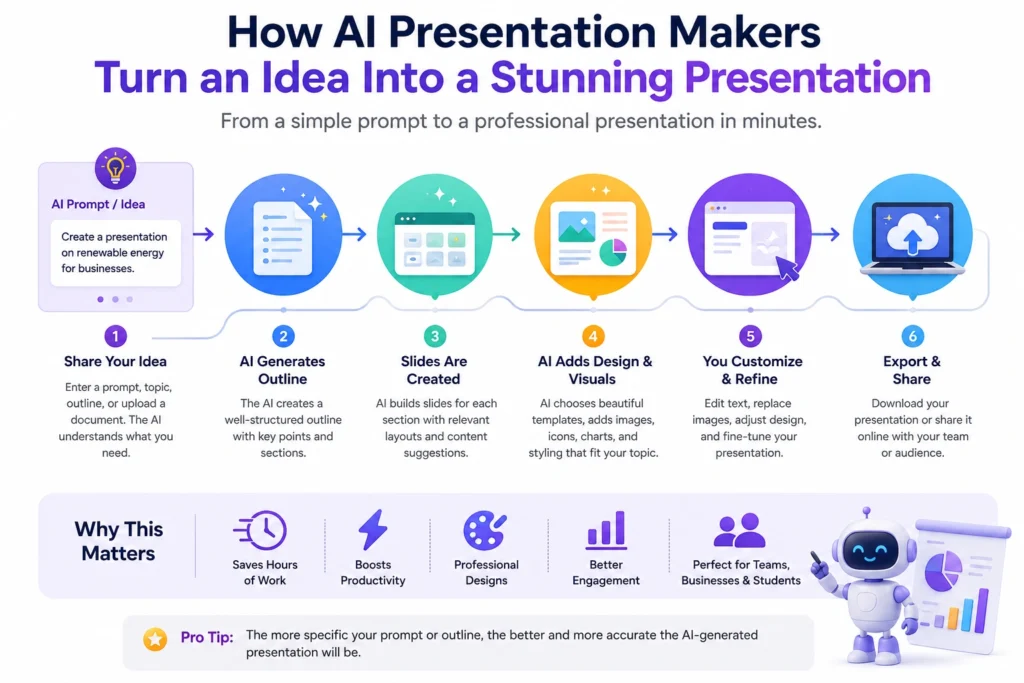
Most AI presentation software follows a similar process:
- Idea or prompt — you describe the topic, paste in text, or upload a file
- AI generates an outline — the tool proposes a slide-by-slide structure you can edit before anything is designed
- Slides are created — text, headings, and talking points are written for each slide
- AI adds layouts and visuals — designs, icons, stock photos, or AI-generated images are applied automatically
- User edits and customizes — you swap images, rewrite lines, adjust colors, and reorder slides
- Presentation is exported or shared — as a PPTX, PDF, web link, or directly inside PowerPoint or Google Slides
Adjusting the outline before the AI designs the slides usually saves the most editing time later — it’s faster to fix a plan than redesign finished slides.
Best AI Presentation Makers in 2026
Below are eight widely used AI presentation tools. Some are AI-first platforms with their own editor; others work as an AI layer inside PowerPoint or Google Slides. Confirm current plans on each official site before you buy.
1. Gamma
What It Does: Gamma turns a prompt, outline, or uploaded document into a designed presentation, and can also generate documents and simple websites. It’s one of the most AI-first tools here — built around generating and refining content with AI rather than manual placement.
Best For: People who want a finished-looking deck fast, with minimal manual design work.
Key Features: Prompt-to-deck generation, an editable outline step, AI image generation, one-click restyling, and export to PPTX, PDF, and Google Slides.
Pros: Very fast first draft; clean, modern default designs; also handles docs and web pages.
Cons: Credit-based system instead of unlimited generations on lower tiers; less granular manual control than a full design suite.
Pricing: A free plan with limited AI credits, plus paid individual and team tiers. Check the official website for current plans and pricing.
2. Canva
What It Does: Canva is a broad design platform whose Magic Design feature generates a presentation from a short prompt using Canva’s massive template and asset library. It’s an AI layer added to an already popular design tool rather than an AI-first generator.
Best For: Marketers, content creators, and small business owners who already use Canva and want on-brand presentations.
Key Features: Magic Design for Presentations, a huge stock photo and icon library, Brand Kit for consistent colors and logos, and one-click resizing into social or video formats.
Pros: Enormous template and asset library; easy to repurpose slides into other formats; familiar interface for existing Canva users.
Cons: AI generation shares a limited monthly allowance on the free plan; less structurally “smart” than dedicated AI-first tools.
Pricing: A genuinely usable free plan, with paid Pro and Business tiers unlocking more AI generations and premium assets. Check the official website for current plans and pricing.
3. Beautiful.ai
What It Does: Beautiful.ai uses Smart Slides — templates that automatically adjust spacing, alignment, and layout as content is added or removed. It’s built specifically for business presentations.
Best For: Teams creating recurring business decks (sales updates, reports, pitch decks) who want consistent, on-brand formatting.
Key Features: Smart Slide auto-formatting, a business-focused template library, brand controls, and team collaboration with locked templates.
Pros: Design stays clean automatically as content changes; strong fit for teams needing visual consistency; business-specific templates.
Cons: No permanent free plan, access is generally trial-based; design flexibility is more constrained than a general design tool.
Pricing: A paid platform with a free trial rather than an ongoing free tier. Check the official website for current plans and pricing.
4. Plus AI
What It Does: Plus AI is an AI add-in that works directly inside Google Slides or PowerPoint, generating and editing slides without leaving your native slide format.
Best For: Teams and individuals whose workflow already depends on Google Slides or PowerPoint and don’t want to switch tools.
Key Features: AI generation from a prompt or document, context-aware layouts that respect your existing slide master and brand colors, and full editability in the native app.
Pros: Keeps everything in the tool you already use; respects existing templates and brand elements; no import/export friction.
Cons: Requires an existing Google Slides or PowerPoint setup; design quality depends partly on your starting template.
Pricing: Typically a free trial period with paid plans afterward. Check the official website for current plans and pricing.
5. SlidesAI
What It Does: SlidesAI is an add-on inside Google Slides that converts a topic, notes, or a full script into a designed presentation using your chosen theme.
Best For: Google Slides users, especially students and teachers, who want a lightweight way to turn notes into a first draft.
Key Features: Text-to-slide generation, support for multiple input types (topic, notes, or script), theme selection, and AI image or stock photo insertion.
Pros: Simple, guided setup for beginners; works natively inside Google Slides; converts existing written content well.
Cons: Design customization is more basic than standalone platforms; best suited specifically to Google Workspace users.
Pricing: A free tier with limited monthly generations, plus paid plans for higher usage. Check the official website for current plans and pricing.
6. Microsoft Copilot for PowerPoint
What It Does: Microsoft Copilot is built directly into PowerPoint for Microsoft 365 subscribers. It generates a full presentation from a prompt or turns a Word document into slides, and can reference other Microsoft 365 files for context.
Best For: Professionals and businesses already paying for Microsoft 365 who want AI generation without leaving PowerPoint.
Key Features: Prompt-to-deck generation inside PowerPoint, document-to-presentation conversion, and context pulled from other Microsoft 365 files.
Pros: No new app to learn if you already use PowerPoint; can use your organization’s existing files as source material; native PowerPoint formatting.
Cons: Requires a Microsoft 365 subscription with Copilot access, a separate cost for many users; less AI-native design flair than AI-first platforms.
Pricing: Requires a Microsoft 365 plan that includes Copilot. Check Microsoft’s site for current plans and pricing.
7. Prezi AI
What It Does: Prezi uses a zoomable, non-linear canvas instead of fixed slides, and its AI generates the visual map and content from a prompt. It also adds live audience engagement features like polls and Q&A.
Best For: Educators, conference speakers, and presenters who want a dynamic, story-driven format rather than standard slides.
Key Features: AI-generated zoomable presentations, audience engagement tools (polls, quizzes, live Q&A), and viewer engagement analytics.
Pros: Distinctive, motion-based presentation style; built-in audience interaction tools; free plan available to start.
Cons: Steeper learning curve than a standard slide format; more limited export options than traditional PPTX-based tools, so confirm formats before relying on it for editable PowerPoint files.
Pricing: A free plan with limited AI credits, plus paid individual and team tiers. Check the official website for current plans and pricing.
8. Pitch
What It Does: Pitch combines AI-assisted deck creation with tools for delivering and tracking presentations, including shared workspaces and engagement analytics after a deck is sent.
Best For: Sales and marketing teams that need to create, present, and follow up on decks collaboratively.
Key Features: AI-assisted slide generation, real-time multi-user editing, AI-generated speaker notes, and analytics on who viewed a shared deck and for how long.
Pros: Strong real-time collaboration; useful post-send analytics for sales and client decks; free plan available.
Cons: AI design generation is a smaller focus than collaboration and tracking; smaller template library than design-first competitors.
Pricing: A free plan with paid tiers for teams needing more collaboration and tracking. Check the official website for current plans and pricing.
Comparison Table
| Tool | Best For | AI Generation | Templates | Free Option | Ease of Use |
|---|---|---|---|---|---|
| Gamma | Fast, AI-first decks | Strong | Moderate | Yes (credits) | Very easy |
| Canva | Brand-matched design | Moderate | Extensive | Yes | Easy |
| Beautiful.ai | Business consistency | Strong | Business-focused | Trial only | Easy |
| Plus AI | PowerPoint/Slides users | Strong | Uses your own | Trial only | Easy |
| SlidesAI | Google Slides, students | Moderate | Basic | Yes (limited) | Very easy |
| MS Copilot | Microsoft 365 teams | Strong | PowerPoint native | No (requires M365) | Moderate |
| Prezi AI | Non-linear storytelling | Strong | Canvas-based | Yes (credits) | Moderate |
| Pitch | Team collaboration | Moderate | Moderate | Yes | Easy |
Which AI Presentation Maker Is Best for You?
Best AI Presentation Maker for Beginners: Canva, thanks to its familiar drag-and-drop interface and generous free plan.
Best for Business Presentations: Beautiful.ai, since Smart Slides keep formatting consistent without manual cleanup.
Best for Students: SlidesAI, a practical pick for students already working in Google Slides who want a fast first draft.
Best for PowerPoint Users: Microsoft Copilot or Plus AI, both good if you need to stay inside PowerPoint with native formatting intact.
Best for Design Flexibility: Canva again, for its enormous asset library and hands-on control over every visual element.
Best for Teams: Pitch, for teams that need to build, present, and track decks together.
Best Free AI Presentation Maker: Gamma — its free plan is generous enough to fully test AI-generated decks before upgrading.
How Businesses Can Use AI Presentation Makers
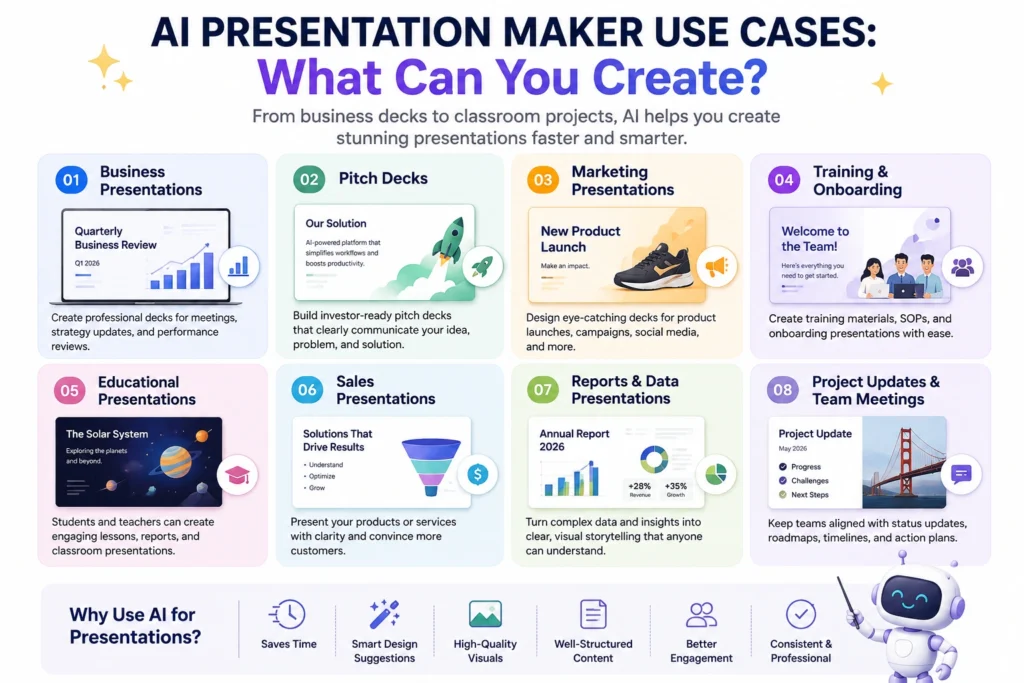
AI presentation generator tools show up in everyday business tasks:
- Sales presentations — quickly assembling a tailored deck for a specific prospect
- Pitch decks — turning a business plan into an investor-ready format
- Marketing presentations — building campaign overviews that match existing visual identity. If you’re creating a presentation for a marketing campaign, it’s also worth exploring our guide to the Best AI Marketing Automation Tools in 2026 for tools that connect to your campaign workflow.
- Training materials — converting internal documentation into structured slides for onboarding
- Internal meetings — turning notes or reports into a quick visual summary
- Business reports — reshaping a written quarterly report into a presentable format
- Client presentations — producing professional, on-brand decks without hiring a designer
- Product presentations — generating launch decks or feature overviews from product specs
These tools save the most time when the information already exists, and the AI’s job is to structure and design it rather than invent it.
Best AI Presentation Makers for Students
Students can use an AI presentation generator for students in several practical ways:
- Class presentations — turning an assignment topic into a structured slide outline
- Research summaries — converting notes or a paper into a visual summary for discussion
- Project presentations — building group project decks faster when time is limited
- Study materials — reformatting notes into slides for review sessions
- Visual explanations — generating simple diagrams or charts to illustrate a concept
Students should always review AI-generated facts, citations, and numbers for accuracy before presenting, since AI tools can misstate details. It’s also important to follow your school’s academic honesty policies around AI-assisted work, since expectations vary by class and institution.
Are Free AI Presentation Makers Worth It?
A free AI presentation maker is usually enough for occasional use, testing a platform, or low-stakes projects like a class assignment. Most free plans give real access to AI generation, just with limits.
Common limitations on free plans include:
- Usage caps — a set number of AI credits or generations per month
- Template restrictions — access to only part of the full template library
- Export limitations — fewer file formats, or lower-resolution exports
- Branding or watermarks — some free plans display the platform’s logo on shared decks
A paid plan tends to make sense once you’re creating decks regularly, need to remove watermarks for client-facing work, or want custom branding, larger AI allowances, or team collaboration. For occasional personal use, a free plan is often perfectly reasonable.
How to Choose the Best AI Presentation Maker
Use this framework to narrow down your options:
- Presentation type — sales deck, classroom project, training material, or investor pitch
- Ease of use — how much of a learning curve you’re willing to accept
- Design quality — whether the default output looks polished enough for your audience
- AI generation capabilities — how much of the content and layout the AI can genuinely handle
- Templates — whether the library matches your industry or use case
- PowerPoint compatibility — native PPTX editing or Microsoft 365 integration
- Collaboration — whether multiple people need to edit or comment in real time
- Export options — PDF, PPTX, web link, or Google Slides
- Pricing — whether the free plan covers your needs or a paid tier is worth it
- Commercial/business requirements — branding controls, analytics, or security features for client work
Limitations of AI Presentation Makers
AI presentation software is genuinely useful, but it isn’t perfect. Keep these limitations in mind:
- AI-generated information can be inaccurate — fact-check statistics, quotes, and claims before presenting
- Generic or repetitive slide content — drafts sometimes need real editing to sound like you
- Limited design control in some tools — a few platforms trade flexibility for automation
- Formatting issues — exports to PowerPoint or Google Slides can shift layouts slightly
- Export limitations — not every tool supports every file format equally well
- Need for human editing — treat AI output as a strong first draft, not a finished product
- Privacy considerations — be cautious about uploading confidential documents to any third-party AI tool
- Changing pricing and features — plans and limits update frequently, so re-check before committing
Frequently Asked Questions
What is an AI presentation maker? Software that generates slide decks automatically from a prompt, outline, or document — handling text, layout, and often images — instead of requiring you to build every slide manually.
What is the best AI presentation maker for beginners? Canva is a strong starting point thanks to its intuitive interface, large free plan, and Magic Design feature for generating a first draft without design experience.
Can AI create a PowerPoint presentation? Yes. Microsoft Copilot for PowerPoint, Plus AI, and Gamma can all generate presentations that export to or work directly within PowerPoint’s PPTX format.
Are there free AI presentation makers? Yes. Gamma, Canva, Prezi, SlidesAI, and Pitch all offer free plans, though each limits AI usage, templates, or export options versus their paid tiers.
Can AI presentation makers create images and charts? Many can. Most platforms include AI image generation or stock photo access, and several support basic chart creation from pasted or uploaded data.
What is the best AI presentation maker for business? Beautiful.ai suits recurring business decks well thanks to its automatic formatting, while Pitch is a strong option for teams needing collaboration and post-send analytics.
Can students use AI presentation makers? Yes, tools like SlidesAI and Canva are commonly used by students for class projects, but students should verify AI-generated facts and follow their school’s academic policies.
Are AI-generated presentations accurate? Not always. AI can misstate facts, statistics, or citations, so any AI-generated presentation should be fact-checked by a human before it’s presented or submitted.
Final Verdict: Which AI Presentation Maker Should You Choose?
There’s no single best AI presentation maker for everyone — the right pick depends on your workflow. Beginners and design-focused users tend to do well with Canva, thanks to its large asset library and approachable interface. Business teams with recurring decks often prefer Beautiful.ai for automatic formatting, while teams needing collaboration and analytics may lean toward Pitch. Students and Google Workspace users are usually best served by SlidesAI or Canva, and anyone locked into Microsoft 365 will likely get the most value from Copilot or Plus AI. For the fastest path from a blank page to a polished draft, Gamma remains one of the quickest AI-first options, and budget-conscious users can start with any free plan above.
Match the tool to the presentation: how much customization you want, whether PowerPoint or Google Slides compatibility matters, and whether you’re working solo or need real-time collaboration.
About the Author
Hi, We are the founders of EveryTechHub. We share beginner-friendly guides on AI tools, blogging, and technology based on hands-on testing and real experience. Read more about us.